
Preparation steps
System Requirements
Section titled “System Requirements”Before preparing the installation, make sure that the computer used meets the minimum system requirements in order to run CachyOS. The installer uses an online installation process so a stable and relatively fast internet connection is mandatory.
- 3 GB RAM
- 30 GB of Storage Space (HDD/SSD)
- Stable internet connection
- 8GB RAM
- 50 GB of Storage Space (SSD/NVMe)
- x86-64-v3 capable CPU
- 50 Mbps or better internet speed
- NVIDIA GPU (900+ - e.g: GTX 950), AMD +GCN 1.0 (e.g: AMD R7 240) or Intel (Integrated HD Graphics series or higher. Arc Series)
x86_64 Microarchitecture Level Support
Section titled “x86_64 Microarchitecture Level Support”| x86-64 ABI | CPU Families / Examples |
|---|---|
| x86-64-v3 |
|
| x86-64-v4 |
|
Creating a Bootable CachyOS USB Drive
Section titled “Creating a Bootable CachyOS USB Drive”There are several tools and methods that can be used to create a bootable USB drive of CachyOS.
balenaEtcher
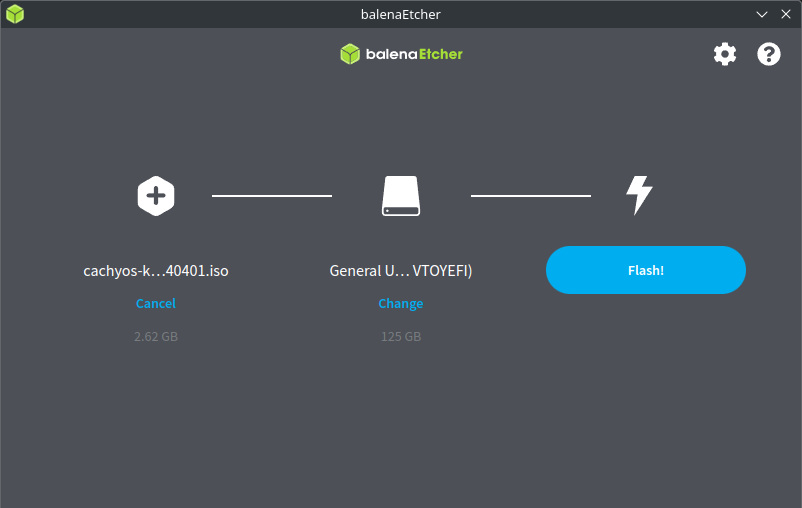
Section titled “balenaEtcher”- Download balenaEtcher. balenaEtcher supports flashing an image of Linux, MacOS and Windows.
If a
.zipfile was downloaded, extract it and execute the binary using the following commands:Terminal window # Extract zip file:bsdtar xvf <zip file name># cd to the new folder:cd balenaEtcher-linux-x64/# Execute balenaEtcher:./balena-etcher - Plug in a USB drive to the computer.
- Select
Flash from fileand select the CachyOS ISO image file. - Click
Select targetand choose the USB drive that was previously plugged in. - Press
Flashto start the flashing process.
Command Line Interface (Linux & MacOS)
Section titled “Command Line Interface (Linux & MacOS)”- Plug in a USB drive.
- Detect the plugged USB drive using the following commands:
Terminal window # Linux# The USB drive could be identified e.g: /dev/sda, by disk model and size.sudo fdisk -l# MacOS# USB drives are identified as "/dev/diskY" where "Y" could be 0,1 etc.diskutil list - Copy the iso contents to the plugged-in USB drive by running:
Terminal window # Replace <usbdrive> with the label of the drive.sudo dd bs=4M if=full_iso_name.iso of=/dev/<usbdrive> status=progress oflag=sync
ddwill now copy the contents of the ISO file over to the plugged-in USB drive.
Rufus (Windows Only)
Section titled “Rufus (Windows Only)”- Plug in a USB drive.
- Download Rufus and install it, or run the portable version.
- On
Device, click on the dropdown list and select the plugged-in USB drive. - On
Boot selection, click onSELECTand locate the CachyOS ISO image file. - Click
START.
Ventoy (Linux & Windows)
Section titled “Ventoy (Linux & Windows)”- Plug in a USB drive.
- Download Ventoy
- Untar Ventoy using the following command:
Terminal window # Replace version with the correct one e.g: ventoy-1.1.07-linux.tar.gzbsdtar xvf ventoy-version-linux.tar.gz# cd to the new folder: (version might change)cd ventoy-1.1.07/ - Execute
VentoyGUI.x86_64by either double clicking on it or via the terminal:Terminal window # It will ask for administrative privileges, enter your credentials./VentoyGUI.x86_64 - Select the plugged-in USB drive by clicking on
Device. - Click on
Install. - After it finishes installing Ventoy into the plugged-in USB drive, close the window and place the CachyOS ISO file into the new usable partition of the drive.
- Plug in a USB drive.
- Download Ventoy
- Run
Ventoy2Disk.exe - Select the plugged-in USB drive by clicking on
Device. - Click on
Install. - After it finishes installing Ventoy into the USB drive, close the window and place the CachyOS ISO file into the new usable partition of the drive.