Skip to content

Managing Linux Kernels & Sched-ext framework with the CachyOS Kernel Manager

The CachyOS Kernel Manager makes it simple to install and manage kernels from any Arch Linux repository.

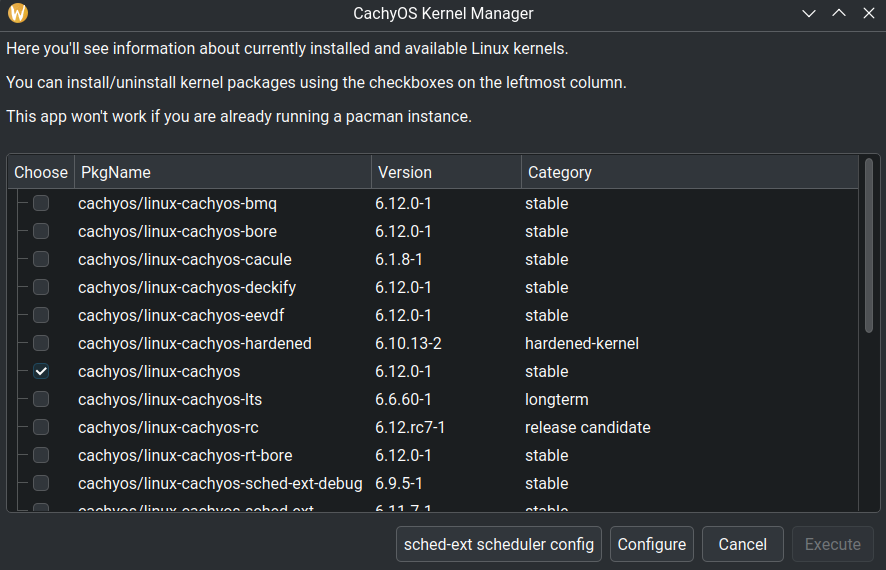
To install a kernel. Launch the CachyOS Kernel Manager application and choose the desired kernel by ticking the box [] from the list of all the available options, then just press Execute to start the kernel installation.

To uninstall a kernel, simply uncheck the box [] next to the installed kernel you wish to remove and press Execute again.

Configuring and Building a custom CachyOS Kernel

Section titled “Configuring and Building a custom CachyOS Kernel”
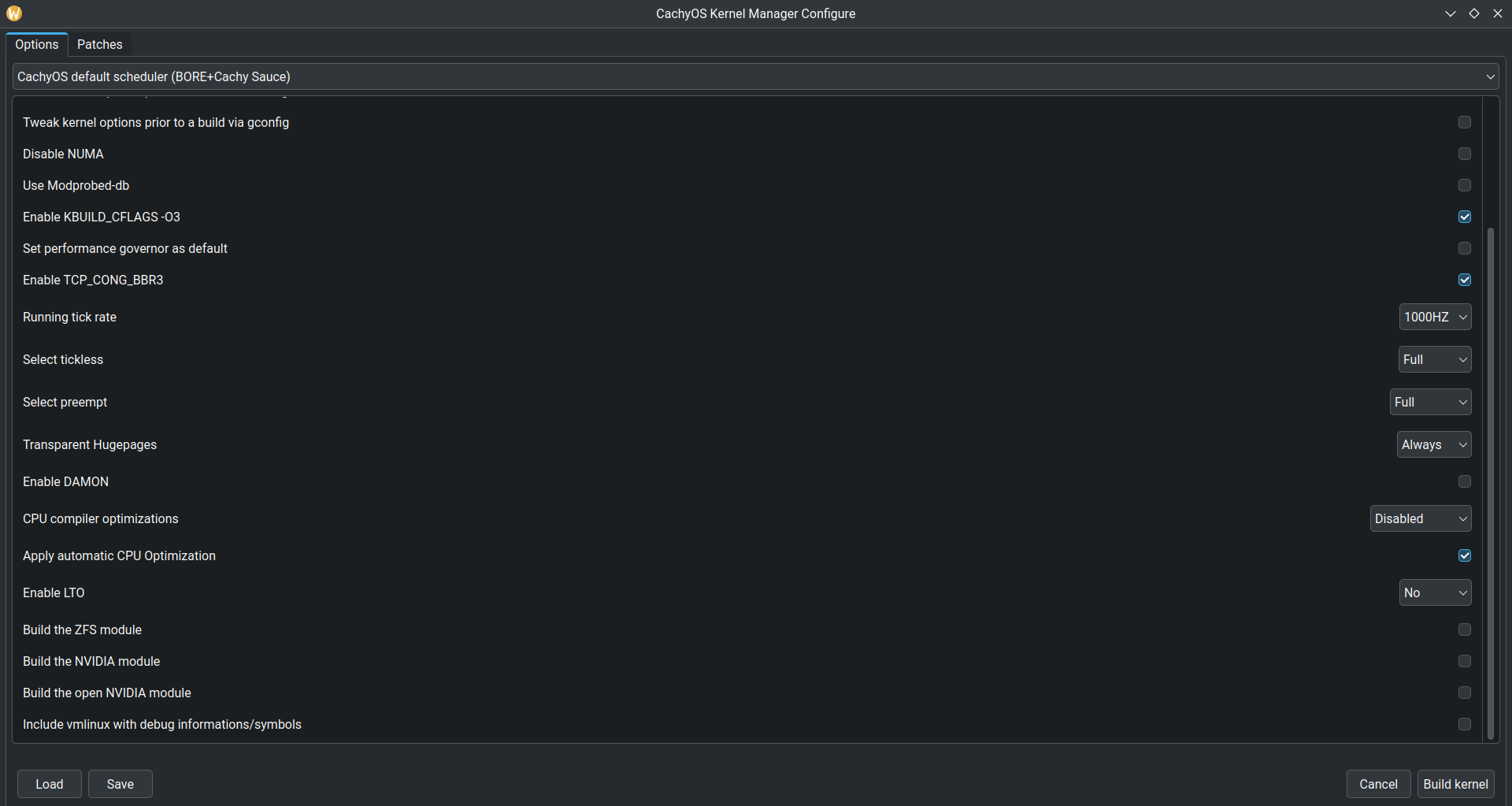
To get started. Open the Kernel Manager and click on the Configure button to start adjusting various settings, such as the desired scheduler, tick rate and more. Once you have made your desired changes, click on Build kernel to begin building your custom CachyOS kernel.

Built kernel packages and cache are stored in ~/.cache/cachyos-km/

Available configuration options:

  • Custom package name: With this option, you can name your kernel whatever you want. For example: linux-custom-cachy
  • Scheduler (BORE, RC, RT, RT+BORE, EEVDF and BMQ)
  • Enable CachyOS config
  • Tweak Configuration via nconfig, menuconfig, xconfig, or gconfig
  • Enable/Disable NUMA
  • Enable/Disable Modprobed-db
  • KBUILD CFLAGS (-O3 or -O2)
  • Performance governor as default
  • Enable BBR3
  • Tick rate selection (100Hz, 250Hz, 300Hz, 500Hz, 600Hz, 750Hz, 1000Hz)
  • Tickless mode (idle, periodic, full)
  • Preemption (Full, Voluntary or Server)
  • Transparent Hugepages (Always or Madvise)
  • Enable/Disable DAMON
  • Enable/Disable Automatic CPU arch detection
  • Apply kernel optimization for specific CPU architectures
  • Enable LTO (Full, Thin, No)
  • Build ZFS Module
  • Build NVIDIA Closed Module
  • Build NVIDIA Open Module
  • Include vmlinux with debug information/symbols
  • Load/Save Kernel Manager config preset: (Only presets from the manager itself)
  • Kernel Patches Management (Remote and Local support)

Once the kernel has been successfully built, you will be prompted for your sudo password to install the kernel.

The Kernel Manager provides a graphical user interface (GUI) for managing and controlling sched-ext schedulers. Access the GUI by clicking on the sched-ext scheduler config button in the main window.
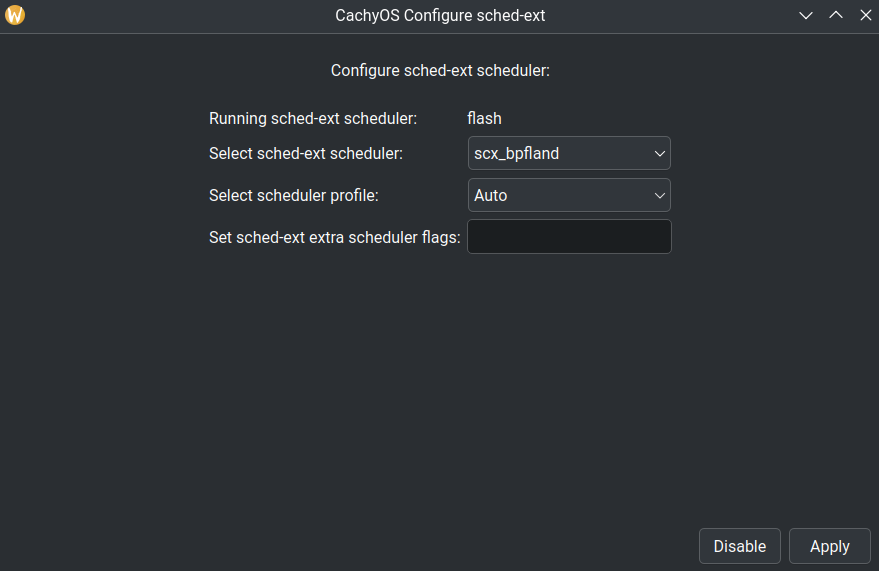

This GUI allows you to:

  • Switch between different sched-ext (scx) schedulers.
  • Enable or disable the scheduler service.
  • Check the currently running scheduler.
  • Set scheduler flags and profiles.

In order to achieve this, the Kernel Manager uses the scx_loader with a configuration stored in /etc/scx_loader.toml.

For more information about the scx_loader configuration file, check this documentation.

  • How does the scx_loader work?
    • Once you have selected the scheduler and profile, the scx_loader will then start the scheduler with the profile that has been selected and save this configuration to the /etc/scx_loader.toml file in order to achieve persistence across reboots. An example of what the file will look like choosing scx_bpfland with the Gaming profile:
      default_sched = "scx_bpfland"
      default_mode = "Gaming"
      [scheds.scx_bpfland]
      auto_mode = []
      gaming_mode = ["-m", "performance"]
      lowlatency_mode = ["-k", "-s", "5000", "-l", "5000"]
      powersave_mode = ["-m", "powersave"]
  • What are the “profiles” for?
    • They are presets for the scheduler that modify flags based on proven combinations to enhance effectiveness for specific use cases, such as “Gaming.”

Low Latency

  • Command-line Flags: -s 5000 -S 500 -l 5000 -m performance
  • Description: Meant to lower latency at the cost of throughput. Suitable for soft real-time applications like Audio Processing and Multimedia.

Gaming

  • Command-line Flags: -m performance
  • Description: Optimizes performance consistency in games on systems with hybrid cores. Prioritizes P-cores over E-cores on Intel CPUs and CCDs on Ryzen X3D CPUs.

Power Save

  • Command-line Flags: -m powersave
  • Description: Prioritizes power efficiency. Favors less performant cores (e.g E-cores on Intel).

Server

  • Command-line Flags: -p
  • Description: Prioritize tasks with strict affinity. This option can increase throughput at the cost of latency and it is more suitable for server workloads.

Low Latency

  • Command-line Flags: -m performance -w -C 0
  • Description: Meant to lower latency at the cost of throughput. Suitable for soft real-time applications like Audio Processing and Multimedia.

Gaming

  • Command-line Flags: -m all
  • Description: Optimizes for high performance in games.

Power Save

  • Command-line Flags: -m powersave -I 10000 -t 10000 -s 10000 -S 1000
  • Description: Prioritizes power efficiency. Favor less performant cores (e.g., E-cores on Intel) and introduces a forced idle cycle every 10ms to increase power saving.

Server

  • Command-line Flags: -m all -s 20000 -S 1000 -I -1 -D -L
  • Description: Tuned for server workloads. Trades responsiveness for throughput.

Gaming & Low Latency

  • Command-line Flags: --performance
  • Description: Maximizes performance by using all available cores, prioritizing physical cores.

Power save

  • Command-line Flags: --powersave
  • Description: Minimizes power consumption while maintaining reasonable performance. Prioritizes efficient cores and threads over physical cores.

Gaming

  • Command-line Flags: --task-slice true -f --sched-mode performance
  • Description: Improves consistency in gaming performance and increases bias towards scheduling on higher performance cores.

Low Latency

  • Command-line Flags: -y -f --task-slice true
  • Description: Lowers latency by making interactive tasks stick more to the CPU they were assigned to and increasing the stability on slice time.

Power Save

  • Command-line Flags: --sched-mode efficiency
  • Description: Enhances power efficiency by prioritizing power efficient cores.

Server

  • Command-line Flags: --keep-running
  • Description: Improves server workloads by allowing tasks to run beyond their slice if the CPU is idle.

Gaming

  • Command-line Flags: -f 5000 -s 5000
  • Description: Boosts gaming performance by increasing how often the scheduler detects CPU contention and triggers context switches with a shorter time slice.

Power Save

  • Command-line Flags: -f 50 -p
  • Description: Enhances power efficiency by lowering contention checks and aggressively trying to keep tasks on the same CPU.

Low Latency

  • Command-line Flags: -f 5000 -s 1000
  • Description: Similar to the gaming profile but with a further reduced slice.

Server

  • Command-line Flags: -f 100
  • Description: Reduced how often the scheduler checks for CPU contention to improve throughput at the cost of responsiveness.

Auto

  • Command-line Flags: -d
  • Description: Disables deferred wakeups. Reduces throughput and performance for certain workloads while decreasing power consumption.

Gaming

  • Command-line Flags: -c 0 -p 0
  • Description: Disable CPU load tracking and always enforce deadline-based scheduling to improve responsiveness.

Power Save

  • Command-line Flags: -m powersave -d -p 5000
  • Description: Prioritizes power efficiency. Favor less performant cores (e.g., E-cores on Intel) and disables deferred wakeups, reducing throughput while increasing power efficiency. CPU load polling increased to 5ms.

Low Latency

  • Command-line Flags: -m performance -c 0 -p 0 -w
  • Description: Meant to lower latency at the cost of throughput. Suitable for soft real-time applications like Audio Processing and Multimedia. Always enforce deadline-based scheduling and synchronous wake up optimizations to improve performance predictability.

Server

  • Command-line Flags: -a -s 20000
  • Description: Enable address space affinity to improve locality and performance in certain cache-sensitive workloads. Polling increased to 20ms.